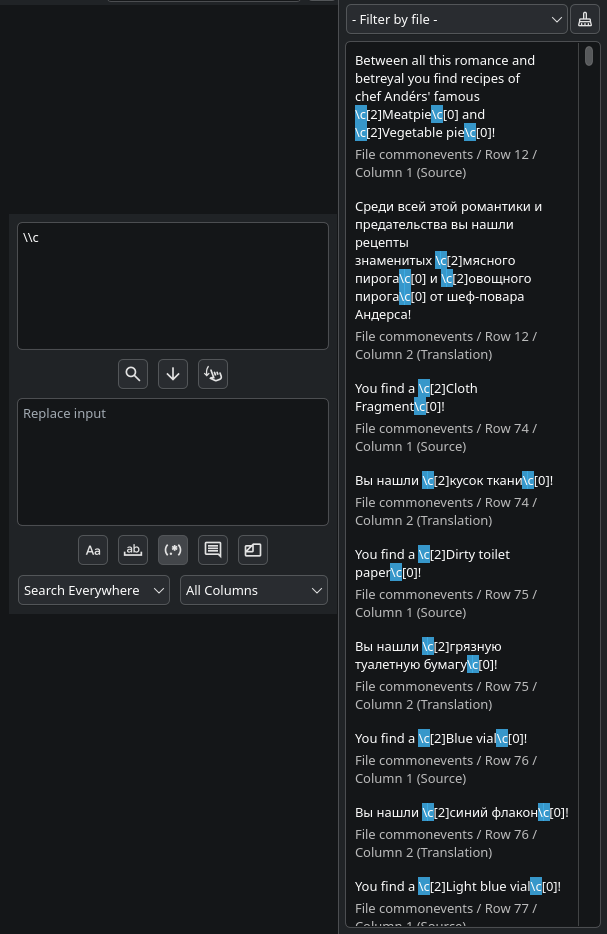
Search Features
Open the search panel with the  button. Type into the search input and press Enter (or the search button) to run it.
The same input and options drive three different actions - Search, Replace, and Put - covered below in order of how dangerous they are. Search only looks; Replace and Put write to your translation, so read their sections before using them on anything you'd mind losing.
Matching options
These apply to all three actions:
| Option | Effect |
|---|---|
| Match Case | Case-sensitive matching. |
| Search Whole | Only matches whole words. |
| Search By Regular Expression | Treats the input as a regex - see Regular expressions below. |
| Search In Comments | Also searches comment lines, which are skipped by default. |
| File select | Scopes the action to specific files instead of the whole project. |
| Location | Search Everywhere, Only Source, or Only Translation. |
| Column | All Columns, Rightmost Column, or any other translation column. |
Search
Search just finds matches and lists them - it never changes anything. Results appear in the  results panel, docked on the right by default (drag it out to float it if you want it elsewhere).
Search is heavily optimized: matches are stored as tightly-packed in-memory indices, so even a project with millions of matches stays responsive.
From the results panel, per-match:
| Click | Action |
|---|---|
| Left | Jump to that match in the translation table. |
| Right | Replace just that match with the replace input's text. |
| Middle | Put the replace input's text into that row's translation (see Put). |
Replace
The global Replace button replaces every match with the replace input's text, across every file the search covers - not just the visible results.
Before running a global replace, run the search first, skim the results panel, and confirm they're actually what you want to change. A single wrong match slipping through a whole-project replace is hard to notice after the fact. If you'd rather do it one at a time, right-click individual results instead of using the global button.
Put
Put is the one to be careful with: it overwrites the translation cell for every row whose source text matches the search input, replacing it with the replace input's text - even if that cell already had a translation.
Put always matches the source text and always writes to the translation column, regardless of the Location option above. It also matches the entire source string, start to end, not just a substring - so searching for Hello only hits a source string that's exactly Hello, not Hello, world!. To match a variable ending, use a regex with a greedy quantifier, e.g. Hello .+ matches Hello World, Hello Rust, Hello Whatever, and so on.
As with Replace: search first, check the results panel, and only then use the global Put button. Middle-click a single result to put just that one row instead.
Regular expressions
The application uses Qt's regular expression implementation, which is essentially PCRE2 - Unicode is fully supported.
In the replace/put text, these substitutions are available:
| Sequence | Inserts |
|---|---|
\` |
The text before the full match. |
\' |
The text after the full match. |
\+ |
The last captured group. |
\{n} / \{nn} |
Captured group n. \0 is the full match. |
\\ |
A literal \. |
Consider doing regex-based replaces somewhere outside the program first (a text editor, a script) if you want an easy way to fully revert them - the application doesn't track replace/put history for you.
Example of searching for a \c pattern: